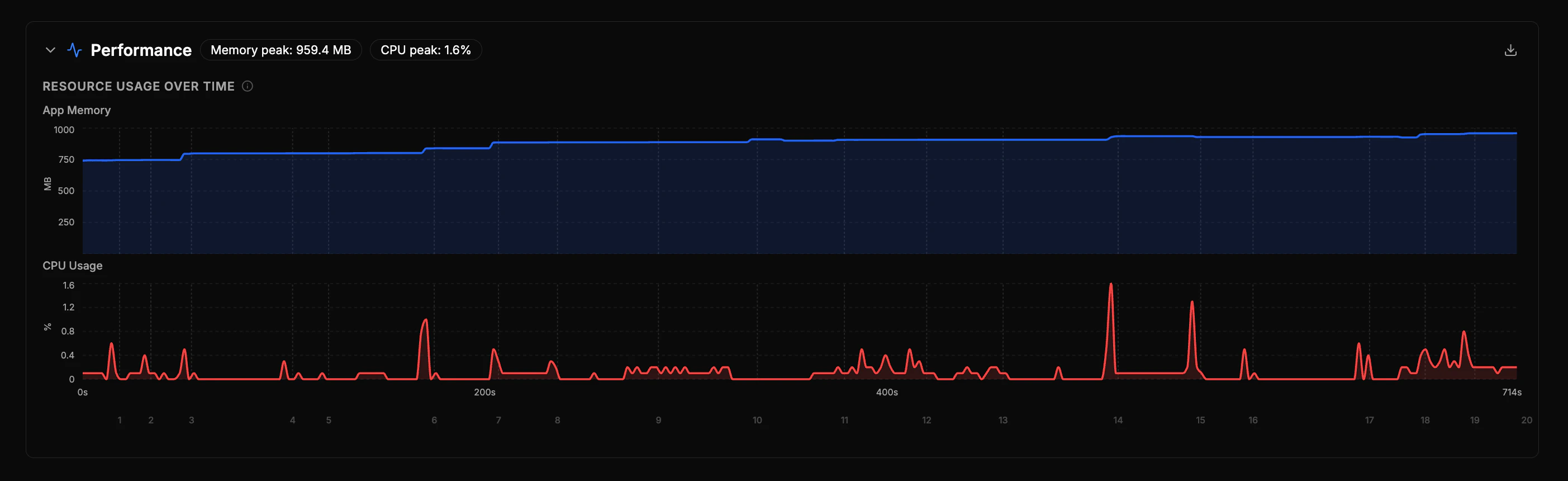
Autosana automatically collects performance metrics during test runs across all platforms. After a run completes, a Performance section appears on the run detail page with charts and diagnostics.
What’s Collected
| Metric | Description |
|---|
| Memory | App memory usage, sampled every ~2 seconds |
| CPU | App CPU usage over time |
| Frame rendering | Total frames, slow frames, stutter rate, and render time percentiles |
| Device RAM | Total device RAM for context (e.g., “350 / 2048 MB”) |
| Metric | Description |
|---|
| Memory | App memory usage, sampled every ~2 seconds |
| CPU | App CPU usage over time |
iOS metrics are measured from the simulator. Absolute values differ from a real device — use them for comparing across builds and detecting regressions.
| Metric | Description |
|---|
| Memory | JS heap usage over time |
| CPU | Browser CPU usage over time |
| Core Web Vitals | Largest Contentful Paint, Layout Shift, Interaction Delay |
| Page timing | Server Response, Page Ready, Fully Loaded |
| Runtime health | Blocking tasks, total blocked time, page complexity |
Reading the Charts
The performance section shows Memory and CPU charts over time, with dashed vertical lines marking when each action was executed.
- Click an action in the action list to highlight its position on the charts
- Click the timeline bar below the charts to jump to the nearest action
What to look for
- Memory trending upward across actions may indicate a memory leak
- CPU spikes correlating with specific actions help identify expensive operations
iOS (Simulator)
iOS performance monitoring is currently not available for local CLI runs. It works for cloud-hosted runs.
Web
Web Vitals thresholds follow Google’s recommendations:
- Good (green): LCP ≤ 2.5s, CLS ≤ 0.1, INP ≤ 200ms
- Needs work (amber): LCP ≤ 4s, CLS ≤ 0.25, INP ≤ 500ms
- Poor (red): above those thresholds